Wednesday, 28 February 2018

List of free online programming courses (MOOC) offering FREE certificates of accomplishment

This post is inspired by the Coursera Junkie post by Kathryn last year that happened to invite the ire of lots of learners interested in MOOC (Massive Online Open Courses). Whilst I was observing the comment chain in that post, I had never bothered to actually take the time to research any MOOC courses that offered free certificates or statements of accomplishment. But a few months ago, my once favorite online academy, edX.orghad just crossed a line by starting to charge money for their certificates, thus shutting down the last zion of open education left for the learners. And because of this, I felt the need to start researching the alternatives.


Now, I know that lots of critics would be throwing this “free rider” argument against me saying that why should I bother about a few dollars worth if I’m getting a verified certificate, or that paying for a certificate somehow increases the “value” of the course, etc. However, you fail to understand that ultimately, the question is not about the certificate (which is just a piece of paper, anyways). Its really about the learnings and insights about a subject that you take away from a MOOC course. Its also about the collaboration and interaction with other co-students on the academy who take the course along with you. The PDF certificate or transcript is just a downloadable thing that you use to improve your LinkedIn profile, but more importantly, its anacknowledgement by the academy that you underwent that course.


Now, as an online academy, if you are charging money to give us that acknowledgement, you are no academy but just a profiteer who is running a business. The moment that money comes in the picture, an academy turns into a business and its education quality starts to deteriorate. Right to education, of all things, MUST be based on merit. You can’t bar someone’s entry to education based on the financial ability. This same concept of merit also applies to Open Source software development. Every contributing developer is invited to the project on the basis of merit alone. Further, every commit, every feature request and every decision is based on merit and voting, no company can buy its way through a FOSS project, the Linux kernel project is the proof of that!


If Coursera and edX stopped being academies, and turned into profit-making entities, let them be – there is no dearth of online learning resources! Below are some MOOC courses that provide free transcripts or certificate of accomplishments upon completion (In future, if any of these academies turn out to be like Coursera/edX, rest assured, they will be removed from this list!):


COURSE NAME


START DATE

CS101: Introduction to Computer Science Ivia Saylor Academy

self paced

CS102: Introduction to Computer Science IIvia Saylor Academy

self paced

CS107: C++ Programming via Saylor Academy

self paced

CS201: Elementary Data Structures viaSaylor Academy

self paced

CS202: Discrete Structures via Saylor Academy

self paced

CS301: Computer Architecture via Saylor Academy

self paced

CS302: Software Engineering via Saylor Academy

self paced

CS303: Algorithms via Saylor Academy

self paced

CS304: Compilers via Saylor Academy

self paced

CS305 Web Development via Saylor Academy

self paced

CS401: Operating Systems via Saylor Academy

self paced

CS402: Computer Communications and Networks

self paced

CS403: Introduction to Modern Database Systems

self paced

CS404: Programming Languages via Saylor Academy

self paced

CS405: Artificial Intelligence via Saylor Academy

self paced

CS406: Information Security via Saylor Academy

self paced

CS408: Advanced Artificial Intelligence

self paced

CS409: Cryptography via Saylor Academy

self paced

CS410: Advanced Databases via Saylor Academy

self paced

CS412: Mobile Applications Developmentvia Saylor Academy

self paced

Learn HTML5 Programming From Scratchvia Udemy

self paced

Behind and Beyond Big Data viaonline.stanford.edu

April 18, 2016

Careers in Media Technology viaonline.stanford.edu

February 2, 2016

Concepts in Game Development viaopen2study.com

30/05/2016

Provision of free certificate transcripts/statement of accomplishments in each Academy:


A free certificate of completion is available for every course at learn.saylor.org by passing a course’s final exam with 70% or better. Your digital certificate can be shared privately or publicly, linked to from other websites, downloaded to a PDF file, and printed.


Most courses offer a certificate of completion. When all lectures have been completed, a gold or green trophy will appear, signifying that the certificate of completion is ready for download. Click on the trophy to view the certificate.


Always a badge and/or a certificate. I.e. you have the opportunity to get a badge or a certificate of course completion for free (as evidence of completion).


FormalCertificateIn addition the majority of OpenupEd MOOCs provide the possibility to obtain a formal certificate


In Session courses offer a Statement of Accomplishment issued by the instructor upon successful completion.


Once the course finishes, you will be able to download a certificate of achievement, along with your final grades, via My Study Centre.


Tuesday, 27 February 2018

Creating Free Websites - SAMHACKERSWORLD

So you're thinking about saving some money and creating a free website? Don't start until you read this!


Although creating free websites can save you money, it also comes with some major disadvantages. Before you go ahead and create your free website, you should try and understand the pros and cons.


Advantages of Free Websites


They're free.


That's about the only thing completely free websites have got going for them!


Disadvantages of Free Websites


Here are some of the major disadvantages of most free websites:


No Permanent Address — A completely free website means no domain name. This means that your website doesn't have it's own, permanent address. Unless you get your own domain name, the address of your website will be attached to the address of your hosting provider's website.

For example, your site would be located at something like http://www.hosting-provider-website.com/your-site or http://your-site.hosting-provider-website.com (no domain name).


On the other hand, if you had your own domain name, it would look more like this http://www.your-site.com (much better!)


Ads — Most free web hosts display advertising on your web pages. This is how they earn money.


Here today, gone tomorrow... — If you are able to find a free web host that doesn't display ads all over your page, chances are they'll soon go out of business. Otherwise, how are they going to make any money? I've heard lots of stories of free hosting providers going out of business (and taking their customers' websites with them)


Free today, expensive tomorrow...— If they don't go out of business, they could simply start charging you instead. I've heard of this happening too. Plus, those who didn't want to pay lost their websites.


No Support — Free web hosts will often provide little or no support. And this is understandable — they probably aren't making enough money to pay for proper support staff. How many times have you heard the term "You get what you pay for".


Slow Website — If a web host isn't charging customers, they'll need to cut corners somewhere. One way of doing this is to cram more websites onto each server. The end result of this? Your website becomes increasingly slow.


If you aren't happy about the disadvantages of creating a free website, you might prefer to create a more professional website.


If you're happy to accept the disadvantages of creating a free website, read on...


Try to get your own Domain Name


If you really must create a free website, at least try to register your own domain name (that's the thing that looks like "your-site.com").


Without your own domain name, your website will always be attached to another website. On the other hand, if you do register a domain name, your website's address will be 100% yours. Plus it will always stay the same — no matter where you host your site in the future.


Advantages of Domain Names


The main advantages of having your own domain name include:


Permanent Web Address — As long as you have the domain name, your website will always be located at the same address. Even if you move to a different hosting provider, your domain name stays the same. Without your own domain name, your website is at risk of disappearing — and this is completely outside of your control.


If you don't have your own domain name, the free hosting company could one day decide to change the location of it's customers' websites. If this happens, your visitors will probably encounter an error when they try and access your page (because they're trying to use the oldaddress). And if you think this is unlikely, think again — it's already happened to many thousands of free website owners all over the world.


Search Engine Friendly — Having your own domain name can give you an advantage with search engine rankings.


More Professional — Having your own domain name shows that you are serious about your website. Also, a domain name could be a better reflection on what your website is actually about.


Better URL — The web address (URL) of your website will be shorter, look nicer, and probably more appropriate.


What is a Free Website?


This might seem like an obvious question, but there are several aspects to keep in mind when creating your free website.


Free Website


This is the actual website itself — the collection of pages, images, and other files that make up your website. There are usually two ways of getting a free website:


Build it yourself (i.e. you learn how to code your own website)


Use a free, online website builder (i.e. you sign up with a free hosting provider who offers a free online website builder).


Free Hosting


All websites have to be "hosted" on a server (so that it's available to the world). Usually this is with a hosting company. Some hosting companies provide free hosting. In return for the free hosting, they usually display ads on your website. This is how they earn money — by the advertising revenue earned by displaying ads on your website.


Free URL ("Web Address")


A URL refers to the location of your web pages. You have one URL for the home page, and one for each other page. To get a free URL, your website needs to be attached to another, larger website. This is usually the site that provides the free hosting.


Unfortunately, having a free URL means that you can't have an address like "http://www.my-site.com". It will be more like "http://www.another-site.com/your-site". Sometimes it could be even worse, like "http://www.another-site.com/customers/websites/~your-username"


The reason you can't have a proper URL for your free website is because this part costs money. The part after the "www" and before the first "/" is the domain name.


One problem with this (apart from the ugly URL), is that, the hosting company could one day change the format of your URL. If they do this, your website will no longer reside at the previous address — nobody will know where it's gone! Then, all you can do is start giving out your new URL (and hope it doesn't change either).


The good news is that domain names are cheap. You can register them for as little as $10 — $15 per year. Once you do this, nobody else can touch it — it's yours, and only yours. That way, you can give your website's URL out to anyone, confident that it won't change.


Create a Mobile Website - SAMHACKERSWORLD

Do you need to create a separate mobile site? Or will it just "work" on mobile devices? Let's find out!


When we say "mobile website", we usually mean a website that has been built specifically to be viewed on mobile devices (such as mobile phones, iPods, and maybe even iPads and other tablets, etc).


Actually, in many cases, a "mobile website" is actually the same website. The only difference is that the template automatically detects which device is viewing the website, then displays the correct layout depending on the device being used. So in these cases, by saying that you're going to "create a mobile website", you actually mean that you're going to modify your existing website's template to be more "mobile friendly".


The "Automatic" Mobile Site


If you use an online website builder, you might find that the package includes a mobile site. In some cases, you may need to configure the mobile site through the website builder. In other cases, there's no need to create a separate mobile website, as it's all done for you.


For example, our partner site ZappyHost has an online website builder plans that have a mobile site included (Full Disclosure: ZappyHost is a partner site and I earn a commission from any product sales).


If you don't use a website builder, you'll need to create your own mobile site.


3 Ways to Create a Mobile Website


There are three main approaches to creating a mobile website. The approach that you use will depend on your particular circumstance.


Create a Separate Mobile Website


Mobile Device Detection


Responsive Design


Below is an explanation of each.


Create a Separate Mobile Website


This method involves creating a completely different version of your website. This version has been specifically designed to be viewed using a mobile device. Using this method, the mobile website will be served on a different URL to the desktop version. For example, if the desktop version is on www.html.am, the mobile version might be on m.html.am.


One of the disadvantages of creating a separate mobile website is maintainability. Any updates to the website needs to be done to both websites - the desktop and mobile version.


A key advantage of this approach is the speed in which you can create a mobile website - especially if you use an online mobile website builder. Some webmasters use this apprach first - so that they can quickly make a mobile website. Then later, once they have more time, they modify their existing website to use either responsive design or mobile device detection.


Mobile Device Detection


A common method of creating a mobile website is to use mobile device detection. This is where you use a server-side script to detect whether the user is using a mobile device or not. If they are, you display your content in a way that is optimized to mobile devices. For example, your mobile version might have smaller (and less) images. Also, the navigation might be positioned differently.


One of the main differences between desktop websites and mobile websites (when it comes to layout) is that, while desktop websites usually have their navigation near the top of the page, mobile websites usually have their navigation at the bottom. The reason for this is simple. Mobile website users don't want half (or all) of their screen filled up with the same navigation every time they view a new page on your website. Imagine if a user decides to view say, four pages on your website. Now, imagine them getting annoyed at you - because every time they view a new page, they have to scroll down just to view the article!


Another big difference between desktop and mobile websites is the navigation itself. Navigation buttons need to be quite large and well defined on mobile websites. This is because users need to use their fingers to click them. If the navigation is too small or not clear enough, the user could accidentally click on the wrong option. This often means that the navigation takes up quite a lot of space on mobile websites - supporting the reason to place the navigation near the bottom.


When using mobile device detection, you have a choice of serving the website on the same URL as the desktop version or a different URL altogether.


Different URL


Many websites display their mobile version on a subdomain of the main website. For example, if the desktop version is on www.html.am, the mobile version might be on m.html.am. In this case, when the mobile detection script encounters a mobile device, it simply redirects the user to the mobile version of the site.

While this may seem like a logical way to go, it might not be your best choice. Search engines such as Google recommend against using a separate URL if possible.


Same URL

Some webmasters/companies configure their mobile website so that it is displayed at the same URL as the desktop website. So, if the desktop website is located at www.html.am, so is the mobile website.

Displaying both desktop and mobile content on the same URL is usually done via server-side scripts. The script detects which device is being used to view the website, then dynamically displays the content in a format that's suitable to that device.

This approach definitely has its benefits. One of the main benefits is that it avoids duplicate content issues (where the same content is located at more than one URL).


Responsive Design


Responsive design is a concept where, a single version of your website is optimized for all devices. This is typically achieved using CSS to display the appropriate items and their styles to suit the viewing device. CSS can be used to adjust an HTML element's size, color, style, etc. It can move elements to a different position on the page or even hide them altogether. CSS media queries can be used to determine different styles based on the size of the user's window. Using responsive design, your website will often appear to "adjust" itself as you resize your browser.


Responsive design seems to be a very logical way to go about designing your website. Having said this, it can take quite a bit more effort to create a website using responsive design. Also, depending on your website, you might find that responsive design doesn't quite cater for all your needs.


Summary


In summary, you have three main choices when it comes to creating a mobile website. The option you choose will depend on your individual circumstances.


But whatever you do, don't forget to test your mobile website with as many mobile devices that you can get your hands on!


How to Code Your Own Website

The thought of building a website from scratch can be somewhat daunting for beginners. But it doesn't need to be. In fact, coding a basic website can be extremely simple, as long as you know a few HTML tags.


Here I show you how to code your own website, then publish it to the web. It won't take long either. As you'll soon discover, building your own website is much easier than it sounds!


What is a Website?


Before we make our own website, we should understand what a website actually is.


A website is simply a collection of web pages. The web pages are usually linked together, but not always. To build a website, you simply create one or more web pages.


In order for the world to see it, the website (or collection of web pages) needs to be hosted on a web server. This web hosting is usually done by a hosting provider(otherwise known as a hosting companyor web host). A hosting provider is simply a company that provides web hosting to their customers.


What is a Web Page?


A web page is a text file that contains a combination of text and "markup" code. When the document is viewed in a web browser, it displays (or "renders") as intended. When it is viewed in a text editor (such as Notepad), it displays the text and markup code.


Therefore, a web page consists of 2 views:


The "rendered" view - This is what you see when you view the web page in your browser.


The "source code" view - This is the "behind the scenes" code that specifies the content and how the page should appear.


You can view the source code of any web page on the web. The source code will usually open in a new tab.


To do this, use your browser's View Page Source feature. For example, if you use Google Chrome, go View > Developer > View Source. If you use Firefox, go Tools > Web Developer > Page Source. Depending on your device and browser, you might also be able to right click anywhere on the page to bring up the View Source option.


There are also other options for viewing a page's source code, such as Inspect Element which allows you to open the source code in a side panel with the selected element highlighted in the source code. Developers often use this when debugging their websites.

The source code of a web page is made up of HTML tags. Some tags are mandatory (all web pages must use them), but most tags are optional. The actual tags that you use will depend on the content you want to appear.


Take a look at the following code.


Code Example 1:


<!DOCTYPE html><html>  <head>    <title></title>  </head>  <body>  </body></html>

The above code can be a template for any web page. If you view the source code of any web page, you should find these tags. You might need to search for them, but they should be there.


You should be able to see the html tag near the top, and the </html> near the bottom. This is because all other HTML tags must go in between the html and </html> tags. (The only exception to this is the <!DOCTYPE...> tag, which specifies the version of HTML/XHTML the document is using. We won't go into this tag here, but if you're interested, here's more info).


The body tags contain all content to be displayed on the page. For example, if you wanted to display the words "Welcome to my web page", you would need to place them in between the body and /body tags.


Here's another example. This time, let's add some content.


Code Example 2:


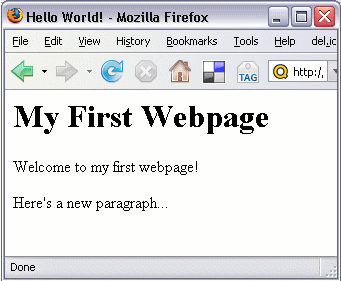
<!DOCTYPE html><html>  <head>    <title>Hello World!</title>  </head>  <body>    <h1>My First Webpage</h1>    <p>Welcome to my first webpage!</p>    <p>Here's a new paragraph...</p>  </body></html>

If you were to open the above HTML file in your browser, it should look something like this:


As you can see, any text surrounded by h1 and /h1 appears as a heading (heading level 1 to be exact). The text within the p tags displays as normal paragraph text. You can add as many HTML tags as you like to a web page.


There are many more HTML tags (more than 100). Some tags are used for formatting (like h1), other tags are used for displaying objects (such as images, forms, tables, etc).


How do I use this Code?


So far I've showed you the code used to create a basic web page. I've also showed you what that web page looks like in a browser. Now I'm going to show you how to do this yourself.


To create a web page like the above example, do the following:


Open up a text editor (such as Notepad or Simpletext) or HTML editor


Open a new (blank) page (eg, File > New...)


Copy the code from Code Example 2and paste it into your blank text file (or re-type it if you prefer)


Save the file as index.html (take note of where you saved it)


Congratulations! You just created your first web page!


Now, you can go ahead and view your new web page in your browser. To do this, you can double-click on the file. If this doesn't work, try opening a new browser window, then dragging the file onto it. Otherwise, depending on your browser, you should be able to go File > Open...


Adding another Web Page


Adding another web page is just as easy as creating your first one. In fact, you could just make a copy of your first one if you wanted, then modify it as you wish. For example, you could create a hyperlink so that the two pages are linked. That way, clicking on the link will display the other page.


So, let's create another web page. On this web page, we will have a hyperlink that points to our first web page. To do this, our code would look something like this.


Code Example 3:


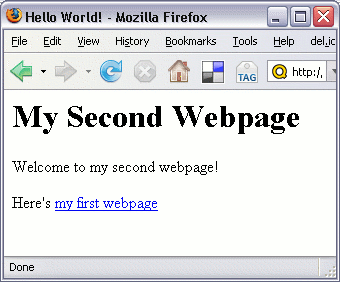
<!DOCTYPE html><html>  <head>    <title>Hello World!</title>  </head>  <body>    <h1>My Second Webpage</h1>    <p>Welcome to my second webpage!</p>    <p>Here's <a href="index.html">my first webpage</a></p>  </body></html>

The above HTML page will look like this in a browser:


So, go ahead - create your second web page. This time call it, say... page_two.html.


So, in case you've forgotten how to do this, here are the steps for creating your second web page:


Open up a text editor (such as Notepad or Simpletext)


Open a new (blank) page (eg, File > New...)


Copy the code from Code Example 3and paste it into your blank text file (or re-type it if you prefer)


Save the file as page_two.html (save it into the same directory as your previous file)


Congratulations! You've just created your second web page. You could say that you've created your first website!


Adding More Content to your Web Page


Now that you've made your first website, you can add as much content as you wish. For example, you could add more text and format it, you could add form elements, images, and much more.


Quackit provides lots of HTML codes that you can copy & paste into your own web pages. These are available at the HTML code library and the HTML examples page.


Feel free to copy/paste any of these HTML codes into your own web page and change them as you wish. Don't be afraid to experiment.


Ready to Publish Your Website?


Everything you've done so far has been on your local computer. The only people who can view your web page are those with access to your computer.


To publish your website for the world to see, you'll need to "upload" your website to a website hosting provider's server. To do this, you need to open an account with a web hosting provider. Once you've done this, you'll be able to give out your own ".com" address to anyone you want to view your website.


Opening a hosting account is usually straight forward. The hardest part is often deciding which hosting plan to use. If you're just starting out, a basic hosting plan is usually sufficient.


So, to publish your website, you simply:


Open an account with a hosting provider


Upload your web page/s (your web host will explain how to do this once you sign up)


It's that simple!


Our partner site, ZappyHost provides great hosting plans for beginners right through to professionals. (Full Disclosure: ZappyHost is a partner site and I earn a commission from any product sales).


For now, the Linux Economy plan should be more than enough. It's the cheapest plan but you get loads of features and sufficient disk space. If you have lots of photos/images for your website, you might be better off with a Deluxe or Premium plan, as these plans provide much more disk space.


If you prefer to shop around first, check out my Web Hosting Tutorial. This tutorial explains in more detail, what web hosting is, and how to choose a hosting provider.


Online Website Builders


I realize not everyone wants to spend the time learning HTML etc in order to make their own website. Many people just need to get a website up and running ASAP without getting all technical!


If that sounds like you, this online website builder by ZappyHost was made just for you! This is a tool that allows you to create a website within minutes. Simply choose a template, add content. It's that simple. Of course, you can customize your template by uploading your own images or selecting from the thousands of stock photos.


And get this... hosting and domain name is included absolutely FREE! If you like the sound of that, check it out!


(Full Disclosure: ZappyHost is a partner site and I earn a commission from any product sales).


More Resources


Here at Quackit you'll find thousands of pages of useful info regarding building websites. Below are some you might find useful for making your own website:


The Create a Website Tutorialoutlines the two main approaches to creating a website (i.e. code it yourself or use a website builder). This article shows you how to save money on a website builder account, as well as getting a free domain name in the process!


The Build a Website Tutorial is a great page to bookmark. It is the main entry point into all the tutorials regarding website development.


As mentioned, we've got Copy/Paste HTML Codes and HTML Examplesthat you can use to copy and paste into your own web pages.


And, you can always check out the Quackit homepage for a quick glance at what you can find at SAMHACKERSWORLD


Sunday, 25 February 2018

10 Best Google Adsense Alternatives (2018)


1,736 COMMENTS


“Your Google Adsense account has been disabled or temporarily banned”.

What a nice phrase on an email to start the day huh? Well, consider you’re not alone. Everyday, hundreds or thousands of accounts are being banned from Google’s Adsense program. Why? I can’t tell you specifically. Either there’s something wrong with the web you’re putting you ads on, or you just simply missed one rule from Google’s TOS.

Instead of crying or bashing Google in multiple forums (actually, this is a very bad idea), remember the world is not over yet, and there are plenty of alternatives out there to try. Google was just your first one, and you failed.

So, stand up, be proactive and act professional! There’s no time to lose.

Updated February (2018):

Eliminated Adversal from the list. once it was one of the best alternatives but they’ve closed their publishers program now.


Added Revcontent as 3rd contender. They have really great ads with good CPCs


Propellerads is working super good the last 3 months! Moved to no.2


Media.net has been moved to 1st placed due to good performance among the people who test it.


10 best Google Adsense Alternatives

Here are some of the best Google Adsense Alternatives you can try to monetize your website without using Google Adsense, and I’ll tell you how they work and why you should consider them, so let’s start:

10. Amazon Associates

You can make a good amount of money from Amazon, especially in Christmas and other holidays

Amazon is the biggest online store in the world, so they must be doing something good. Well, if you have a website that talks about any product that can be found on Amazon, then Amazon associates could work for you. Amazon allows you to put dynamic image ads to your blog, so that you can promote them and while this isn’t a Pay-per-click or CPM program, it will pay you a small commission for everything they sell from your links. So let’s say you have a blog about Apple products and you put an ad driving them to buy an iPod or just a cable. If they buy it, an small commission will be for you. So if you sell a $10 cable you might receive a few cents, but sell a $1500 Laptop and you might receive $100. The good thing is that everything they buy through your link (even if it isn’t the product you recommended at first) will generate a commission for your. the only con I find with Amazon, is that they need to send you a check that could take weeks to arrive to your home, unless you live in the United Stated of America where you can provide your Bank account. You can use this with Adsense at the same time.

9. Yllix Media

Yllix is a network I have heard a lot in the last years that has a decent CPM and many monetization options. Their homepage might look simple but their dashboard is great and it’s easy to get started. Yllix has Pop under ads, mobile redirects, sliders, layer ads and full page ads so you can get a good CTR and make money with them. Definitely a good option for starters and their approval is fast. Sign up here.

8. Revenue Hits

Revenue Hits is a very strong network with several years in the industry. I’ve been working with them for 2 years and so far the results have been great. Revenue Hits is a Performance Ad network, which means they pay you for results (CPA, which is great for many niches). Revenue Hits has an advanced platform that learns from your Ads so if you give them a try make sure to keep their ads running for at least 3-4 days to get the best results. Another great thing is that they have different monetization channels available. You can create banner ads, sliders, pop -unders, buttons and more. Revenue Hits pays on a NET 30 basis and they issue payments via wire, Paypal and Payoneer! Create your account and get started in just a few minutes HERE!

Bonus: Read my full RevenueHits Review where I show you how I earn more than $1,000 per month and take advantage of the summer promo where you can get up to $900 extra for your traffic!


7. Chitika

The reason I put Chitika on the number 3 of this list, is because Chitika is very similar to Adsense. they allow you to customize your ads, and it only serves contextual ads. One good thing is that you can use it along with Adsense and there are no problems at all. Chitika pays via Paypal ($10 USD minimum, which is good for starters) or via check ($50 minimum). If I were to recommend an ads service as an alternative to Adsense, Chitika would be my first choice, hands down. Chitika can pay you via paypal if you need. Sign up here and get your account approved fast and easily! Bonus: Check my Chitika earnings here.

Make money without Adsense!


LEARN HOW I USE ALTERNATIVE AD NETWORKS AND TRAFFIC SOURCES TO MONETIZE MY WEBSITES AND EARN $10,000+ PER MONTH.


SHOW ME!I won't send you SPAM. Unsubscribe at any time.

6. PopCash

Popcash is another very good network that has been out for a long time and usually gives me similar results as PopAds (see number 4). PopCash has PopUnder ads with a great CPM and good inventory for all countries both for mobile and desktop traffic. You can request your payments inside the dashboard and they pay via Paypal, Payza and Paxum. Money transfers usually take 24-48 hours which isn’t bad at all. Sign up here and get started with Popcash.

5. Infolinks

Infolinks is one of the largest monetization networks in the world today, helping more than 200,000 online publishers in 128 countries earn money from their unused ad space. Their FREE to use native ads work perfectly with all ad solutions and don’t interfere with the user’s experience! From effective contextual and video ads, to engaging display banners – Infolinks’ highly customizable products will guarantee you make the most out of your traffic.

Their platform is very simple to integrate into your site, and is open to any publisher, big or small, with no setup fees, no minimum requirements for page views or visitors and no hidden commitments. Infolinks advertisers are selected based on quality, that’s why they work with worldwide leading brands such as: Facebook, Amazon, Ebay, Ali Express, Pizza Hut, TripAdvisor, Hyundai and many more. Start using Infolinks here.

4. PopAds

PopAds is a performance network specialized in Pop Unders. They have good rates and they can monetize all countries. Something great about PopAds is that they can pay daily as long as you earn $5 or more per day. Their quality is good, and they also have pop ups, tab ups/unders and other monetization methods. Their approvals are easy and setting your ads takes just a few minutes. Sign up as a publisher here.

3. RevContent

Revcontent is a Native Ads Network with some of the best quality ads and approval process in the industry. Native Ads have super high engagement vs. regular banners and they blend pretty well with your blog or website as they just look like related articles. Revcontent has great CPCs, paying 1-10 cents per each click and having a super wide network of advertisers from all over the world. Revcontent will pay you more revenue share and make your approval process faster if you sign up from a referral link. Click here to create your publishers account.

Some of the biggest websites in the world like Forbes and PCworld use Revcontent to add revenue to their Adsense earnings. Revcontent is a networks you should definitely try and you can easily mix it with other networks in this list to improve your earnings.Sign up here.

2. PropellerAds Media

Propeller Ads is one of the biggest pop-under networks available. They started working in 2011 and quickly developed into one of the biggest networks with great CPMs. They specialize in monetizing websites for the following niches: entertainment, videos/movies, games, dating, finances, software, gambling and more. If you’ve got one of this sites, you could make more money with Propeller than with Adsense. They also have banners but the pop unders work better overall. Also, if you’ve got mobile traffic, they’re a great Adsense alternative as they work closely with ad networks that monetize apps and mobile services leading to huge ROIs and great CPMs too.

Propeller pays on a NET 30 basis and they have a great fill rate for tier 2-3 countries. So if you’re struggling to monetize traffic from countries like India, Singapore, Turkey, South Africa, etc. Propeller has a big inventory for them too. Sign up as a Publisher with Propeller Ads here

Bonus: Check how to setup PropellerAds  and a case study on how to make $300 per day with PropellerAds and viral websites.


1. Media.net

If you’re looking for the most similar Adsense Alternative, here you have it:The Adsense for Yahoo and Bing. Media.net is an industry-leading technology company that develops innovative digital advertising products for both publishers and advertisers. They have over 500 employees in key operation centers across – New York, Los Angeles, Dubai, Zurich, Mumbai & Bangalore.

By Revenue, Media.net runs the #2 largest contextual ads program globally. Media.net powers the Yahoo! Bing Network Contextual Ads program. Media.net exclusively manages technology, business operations and relationships with respect to publishers worldwide for this program. Today, Media.net is a leading global contextual advertising company that provides a wide range of advertising and traffic monetization solutions to a substantial and diversified client base. With more than 500 employees, Media.net has one of the largest teams worldwide building a global contextual advertising business. Plus, they take 2 days on average to get your account approved and will give you an extra 10% over your earnings the first 3 months! (way better than waiting weeks for an Adsense approval). Sign up here.

Bonus: Check out our full Media.net review and learn how to get started ASAP.


BONUS: Facebook Audience Network

I’m adding this in 2017 since it’s been one of our biggest earners. Facebook created Instant Articles back in 2015 and they started allowing you to monetize your articles last year with their Audience Network. We’ve made thousands of dollars with it, although this only applies if you have Facebook traffic from mobile users. For the rest, it’s better to monetize it with other networks like Adsense or Revcontent. Check out more info in the following link if you want to work with Facebook Instant Articles.

What can I learn from this?

Life can be rude sometimes. You Google Adsense account could have been banned because you didn’t catch a rule from the TOS, or maybe it was a mistake, however, you can’t always rely only on 1 solution. The secret word here is to “diversify”. Try to have as many income streams as you can by adding and testing different ad services, and you’ll find your way to the top. Those Google Adsense alternatives will help you develop as an Internet Marketeer even more.

Even if your Google Adsense account was banned, this is not the end of the world. In fact, it’s only the beginning